How to unlink iCloud and turn off Activation Lock before you send in a device

Every iPhone, iPad and Mac that is linked to an Apple Account has Activation Lock. It is meant to prevent theft and works well: without your password nobody can set the device up again, and that includes us. That is why, for a trade-in, a return within the 30 days to change your mind or a warranty repair, we ask you to unlink the device from your account first. Below you can read how to do that via iCloud.com, handy if the device is already in the box, no longer turns on or has a broken screen.
Why this is necessary
As long as Find My is on, the device stays linked to your Apple Account, even after it has been erased. The next user then sees the 'Activation Lock' screen and cannot get any further. For us it means we cannot check a traded-in device and cannot complete a return or repair.
Trade-in: we can only assess your device and pay you out once it is removed from your account. Also read how trading in at Segonda works.
Return within 30 days: a returned device that is still linked to an account cannot be accepted by us until it has been unlinked. See registering a return.
Warranty or repair: for a repair we sometimes have to fully restore the device; that is only possible without Activation Lock. See our warranty.
Before you start, make a backup if you want to keep your data (iCloud backup or via a computer). The erasing below removes everything from the device.
Step 1: log in to iCloud.com
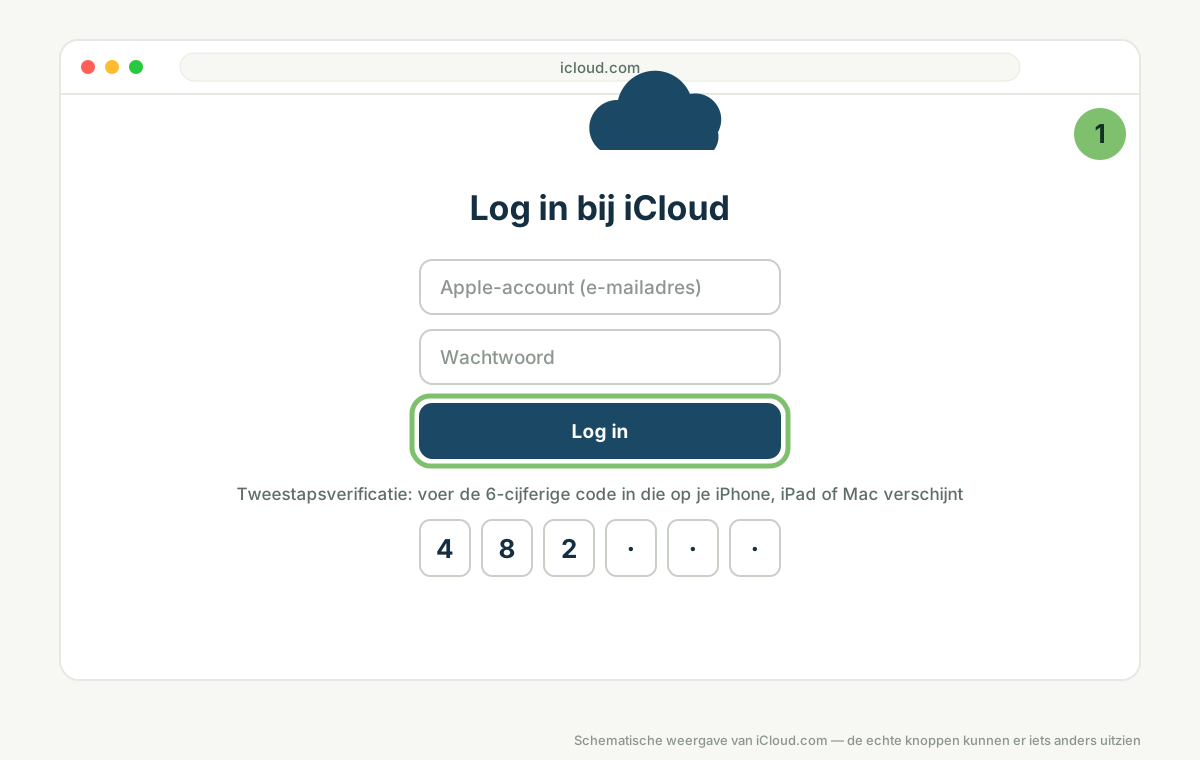
Go to icloud.com in a browser and log in with the email address and password of your Apple Account. That is the account the device was set up with.
If two-factor authentication is on, a six-digit code appears on one of your other Apple devices, or you receive it by text message. Enter it. No other device any more? Then choose 'Didn't get a code?' and have the code sent to your phone number.
Step 2: open 'Find My'
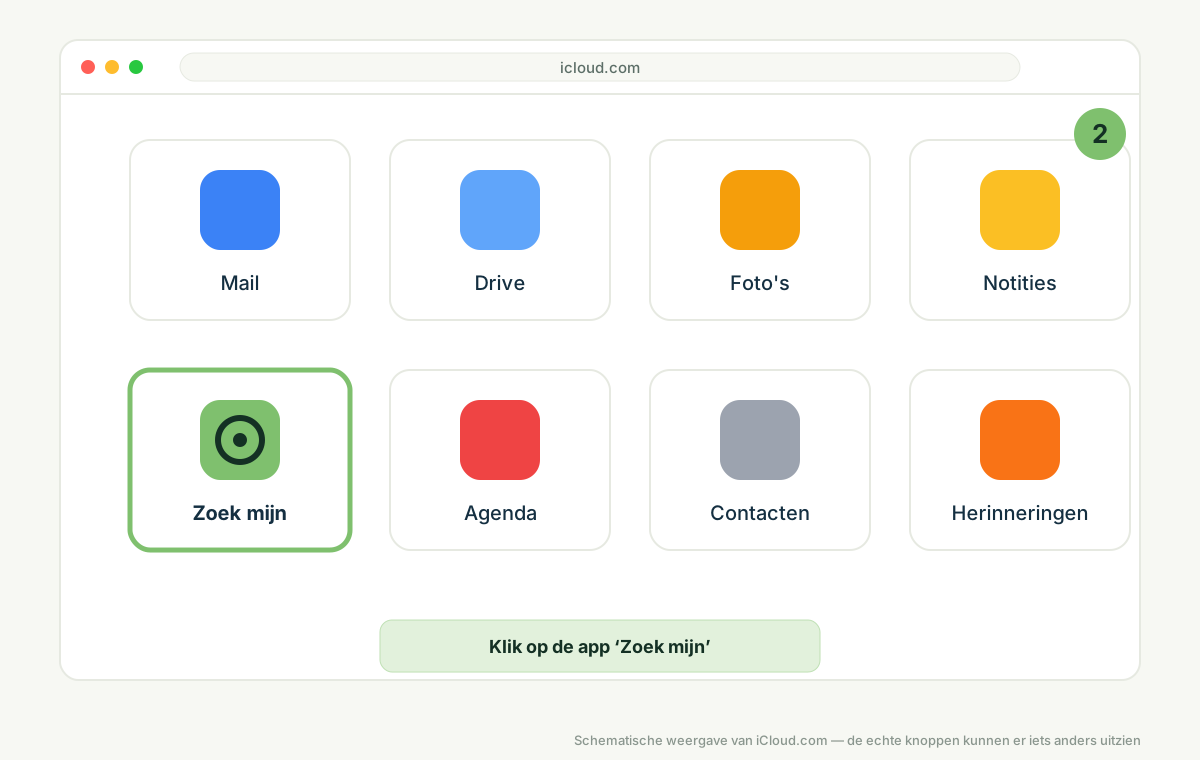
After logging in you see the iCloud apps. Click Find My. Sometimes iCloud asks for your password once more here.
Can't see the app? Scroll down or click the grid icon at the top right for all apps.
Step 3: choose the device you are sending in
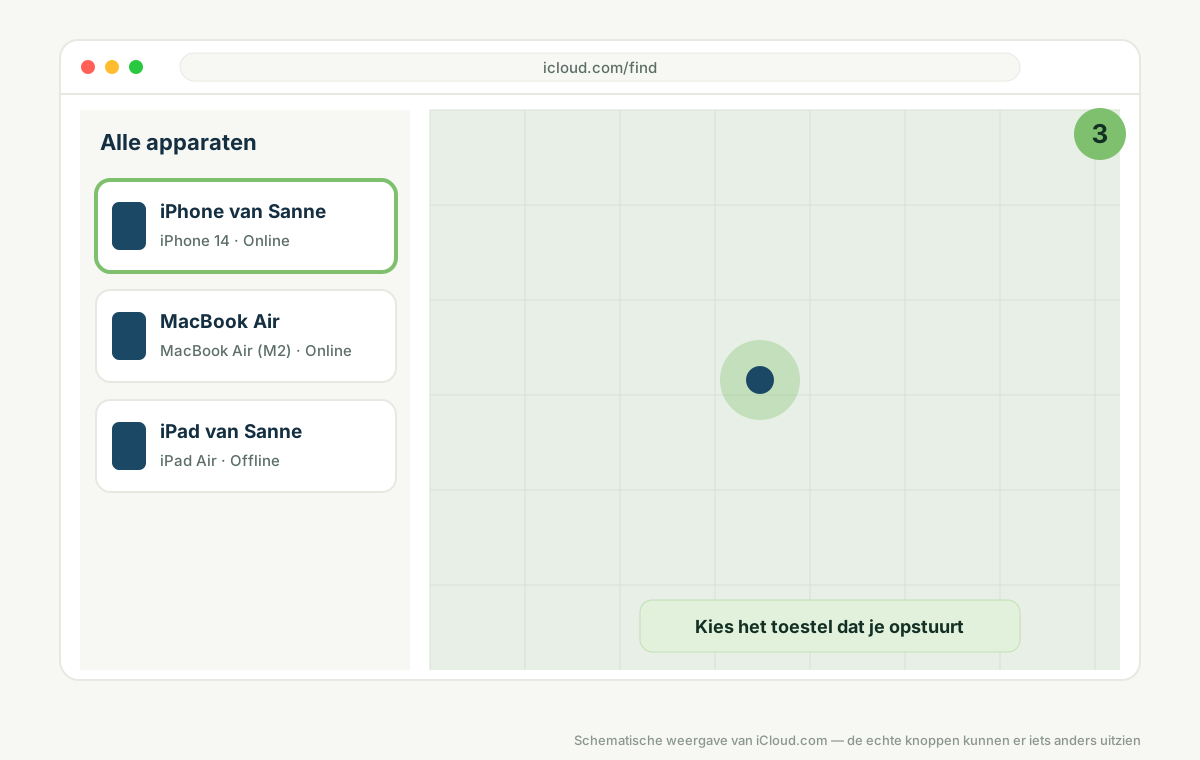
On the left is the All Devices list with everything linked to your account. Click the device you are sending to us. Pay attention to the model and colour, so you do not accidentally erase the device you keep using yourself.
Step 4: erase the device
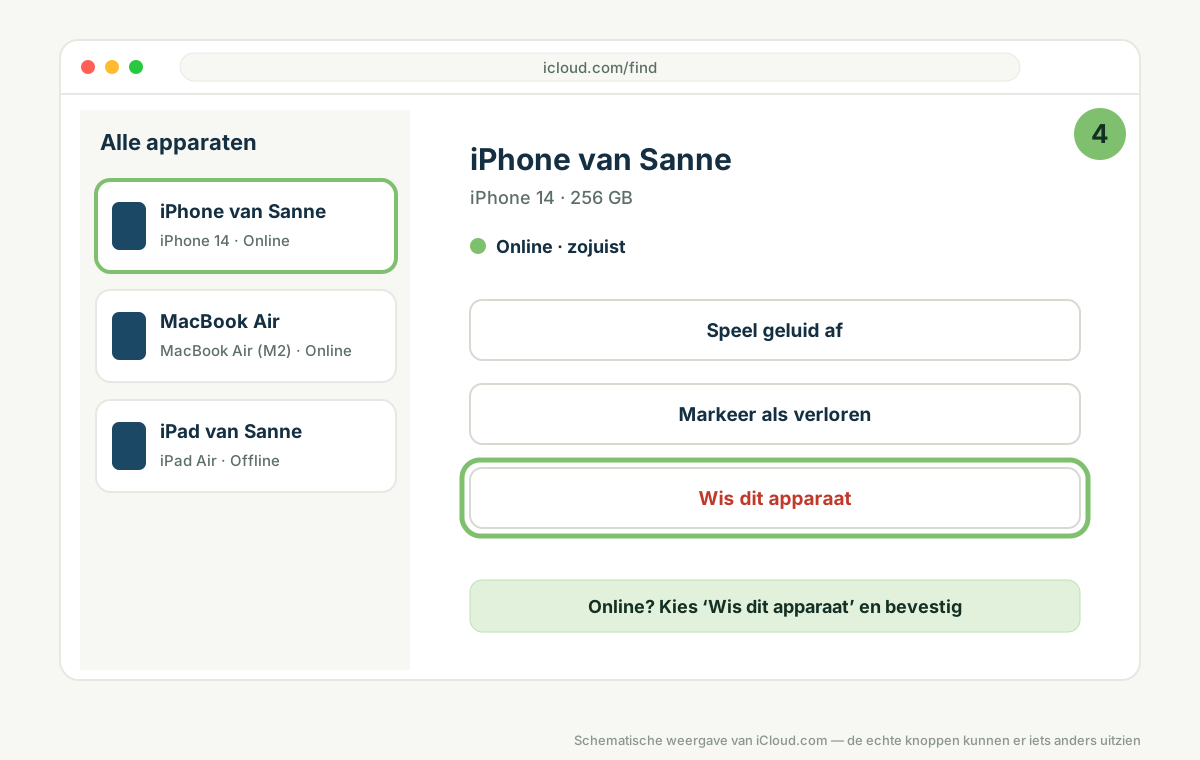
Choose Erase This Device and confirm. iCloud may ask for your password once more and offers to put a phone number and message on the screen; you can skip that.
If the device is online, it is fully erased within a few minutes and restarts with the welcome screen. At that point Activation Lock is still on: you sort that out in the next step.
Step 5: remove the device from your account
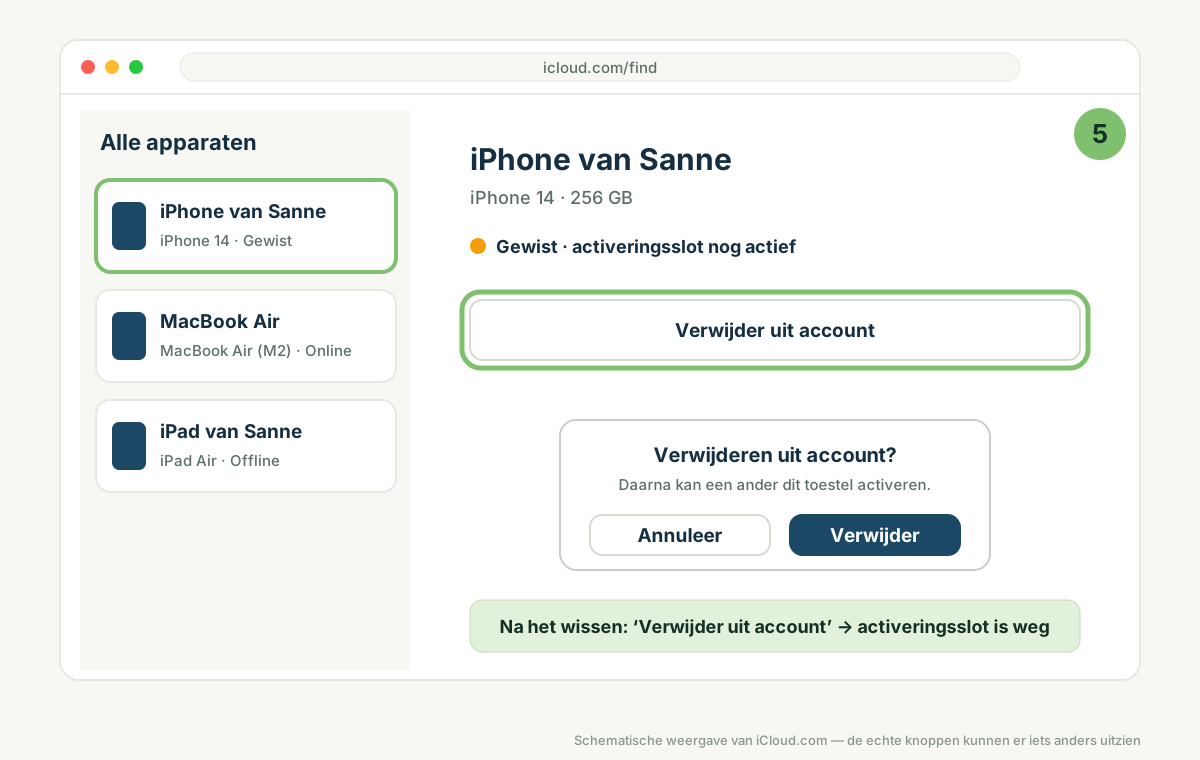
As soon as the device shows as erased in the list, the Remove from Account button appears. Click it and confirm. That removes the device from your list and lifts Activation Lock.
This is the step that is forgotten most often. Erasing alone is not enough: without removing it from the account the lock stays active.
Device offline, broken or no longer turning on?
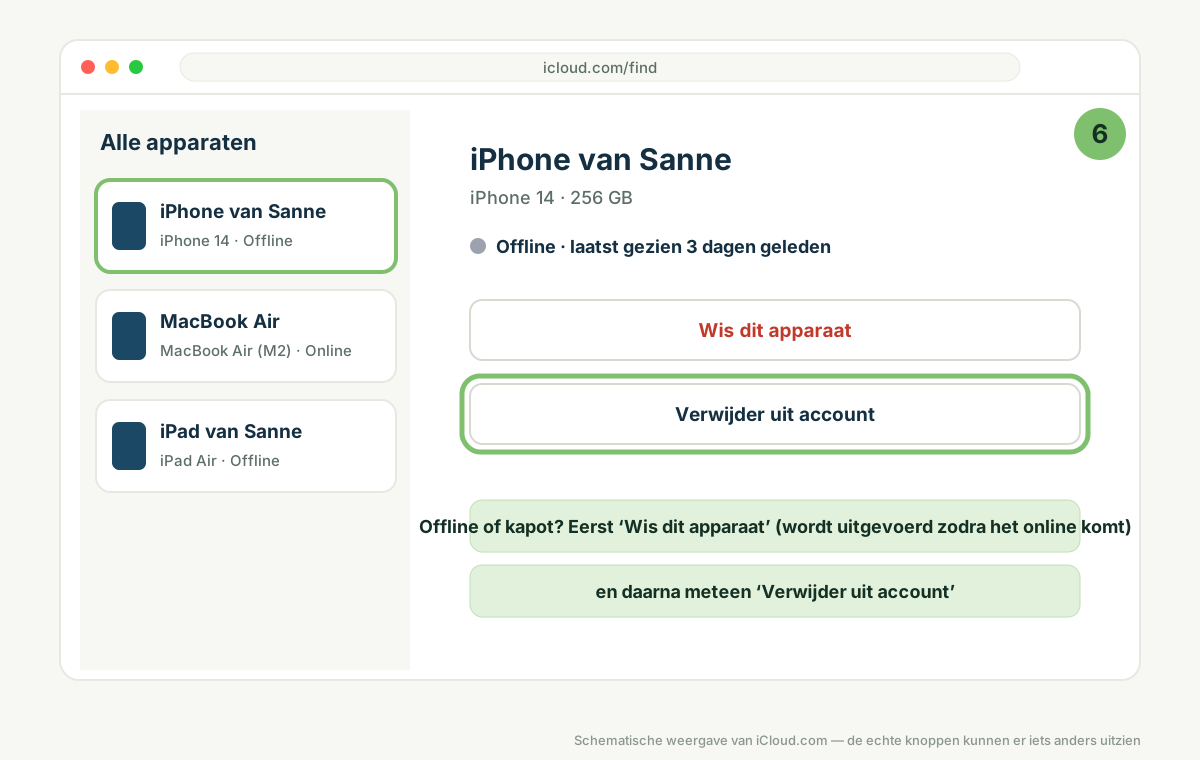
That makes no difference for this route. In that case too, first choose Erase This Device: iCloud queues the erase and carries it out as soon as the device ever connects again. Straight after that you can choose Remove from Account; the button is there for an offline device too.
As soon as we receive the device and switch it on, it is erased and the lock is already off your account. You do not have to do anything more for that.
Still got the device in your hands? Then you can also do it on the device itself
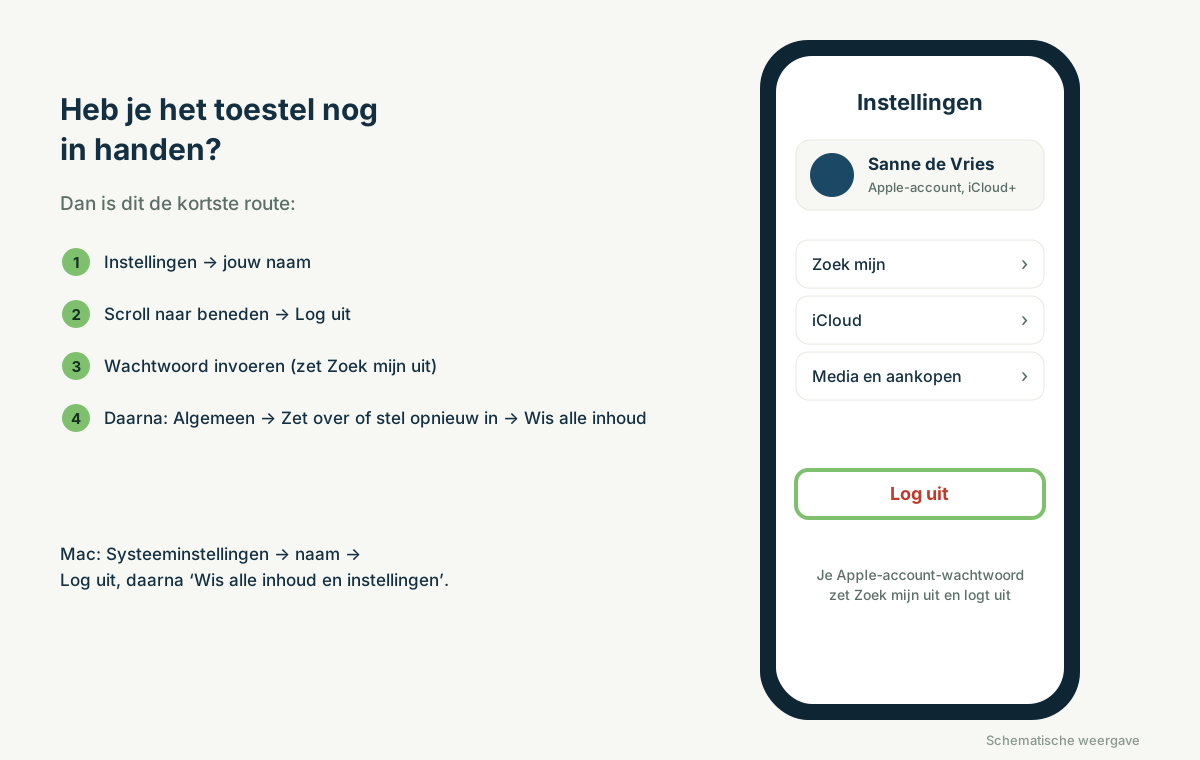
iPhone or iPad: Settings → tap your name at the top → scroll down → Sign Out. Enter your password; this turns off Find My. Then erase the device via Settings → General → Transfer or Reset iPhone → Erase All Content and Settings.
Mac: System Settings → click your name → Sign Out. Then erase the Mac via System Settings → General → Transfer or Reset → Erase All Content and Settings. On older Macs without that option: restart in Recovery mode and erase the disk.
Apple Watch: unpair it via the Watch app on your iPhone (My Watch → All Watches → i → Unpair Apple Watch). That erases the Watch and turns off the lock.
After erasing, check the welcome screen: if the device asks for the Apple Account of the previous owner, the lock is still on and you still need to do step 5 via iCloud.com.
Forgotten your password or no access to the account any more?
Without the password of the Apple Account nobody can turn off Activation Lock, and that includes us. First try to recover your password via iforgot.apple.com. If that does not work, only Apple Support can help; keep your proof of purchase and the serial number of the device at hand, Apple uses them to check that you are the owner.
For a trade-in: we can only take over a device once it is off the account. If you cannot manage that, do not send it in yet and get in touch with us, and we will help you look into it.
Quick check before you close the box
Backup made of what you want to keep.
Device erased and gone from the list in Find My, or signed out and erased on the device itself.
SIM card out (iPhone and iPad with a SIM card slot) and any case and screen protector removed.
The welcome screen does not ask for the previous owner's account.
After that the device can come to us with the free shipping label. For a trade-in you get a message as soon as we have checked it.