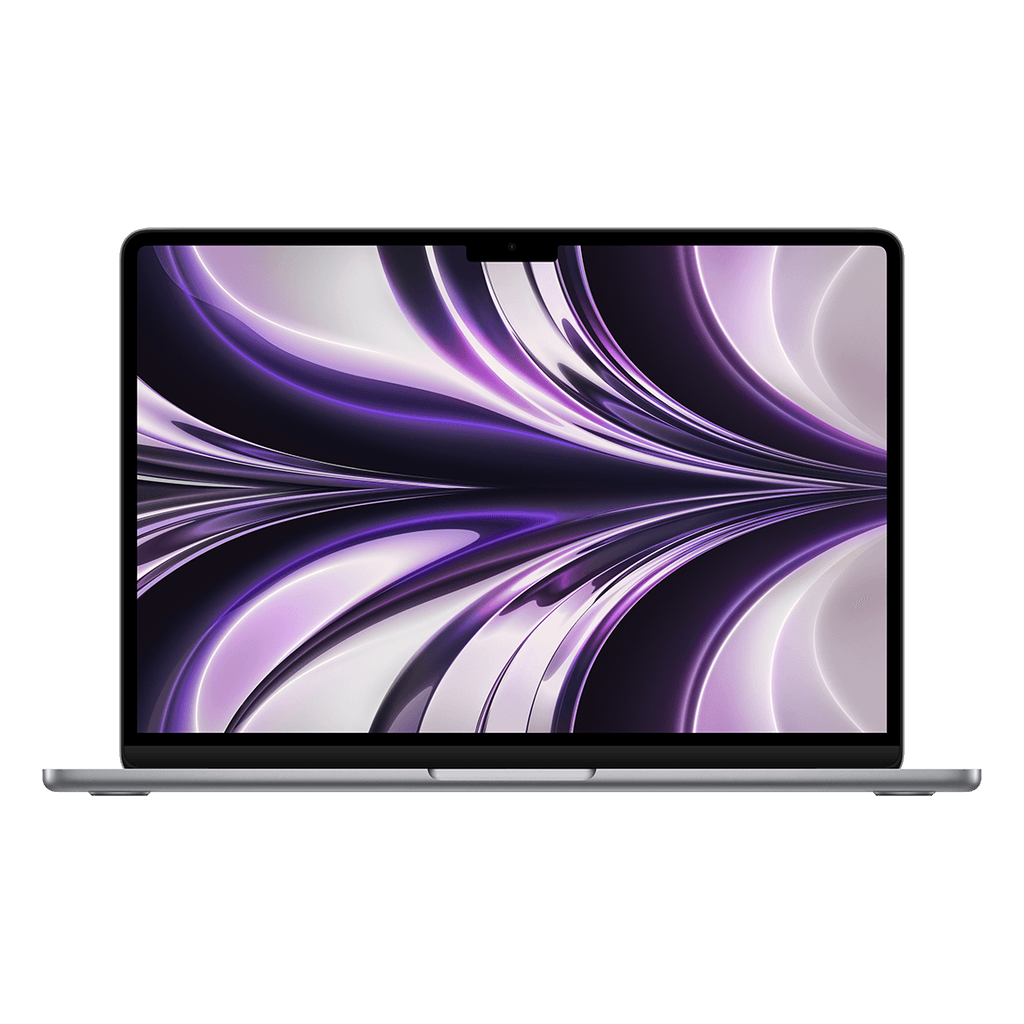
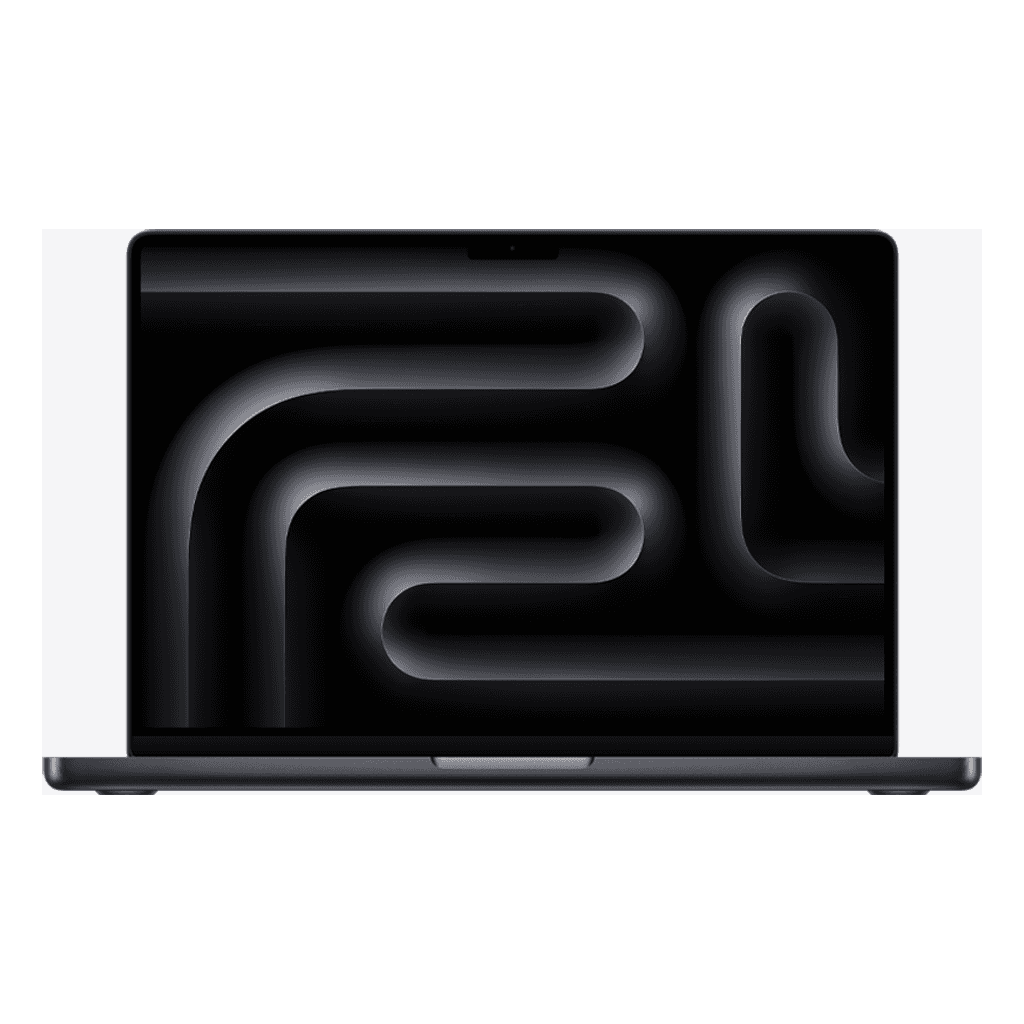
Refurbished MacBook arrived? Check these points in ten minutes

Short answer: take ten minutes before you transfer everything. Check the exterior against the condition you chose, the display, the keyboard and the trackpad, the ports and charging, the camera, microphone and speakers, the battery health and whether storage and memory match your order. If something isn't right, report it within the 30-day return period. Only erase your old laptop once you are done.
Step 1: starting up and logging in
Switch the MacBook on. Sometimes a temporary account from our checks is still on the device. If the MacBook asks for a password, try welkom, Welkom1234 or User. If it asks for a passcode, try 1234 or 0000. After that you set up your own account.
Does the MacBook ask for someone else's Apple ID? That shouldn't happen. Send us your order number and a photo of the screen and we will sort it out. This and other questions about the first day are in the frequently asked questions.
Step 2: exterior and display
Exterior: look at the lid, the underside, the edges and the corners in good light and compare that with the condition you chose. With Very good you may see light marks on the casing if you look closely; the screen should be flawless. The description of each condition, with example photos, is on the product page.
Display: set the brightness to maximum and open a completely white and a completely black image. Look for blotches, lines and pixels that don't light up.
Hinge: the lid should stay put at every angle.
Step 3: keyboard, trackpad, ports and sound
Keyboard: open Notes and press every key once, including the function keys. Check the keyboard backlight in a dark room.
Touch ID: set up your fingerprint. That tests the sensor straight away.
Trackpad: click in all four corners and in the middle, and scroll with two fingers.
Ports and charging: plug the charging cable into each USB-C port in turn and check that the battery icon in the menu bar shows it is charging. Test the headphone jack with wired earphones.
Camera and microphone: open Photo Booth, record a short video and play it back.
Speakers: play music at half and at full volume and listen whether the sound stays clean.
Wi-Fi and Bluetooth: connect to your network and pair your earbuds or mouse.
Step 4: battery, storage and memory
Battery: go to System Settings → Battery and click the i icon next to Battery Health. The maximum capacity should be 85% or higher.
Chip and memory: click the Apple menu at the top left and choose About This Mac. Compare the chip and the memory with your order confirmation.
Storage: in the same window click More Info and scroll to Storage, or go to System Settings → General → Storage. macOS shows slightly less than the figure on your order, because the system reserves some space for itself.
Is something not right?
Report it within 30 days of receipt. Send us a message via contact with your order number and a photo or short video of what you see, or register the device on the returns page; you get a free return label there. After those 30 days the 3-year warranty applies. Drop and water damage are not covered.
Everything in order? Then transfer your data with our guide setting up a new MacBook and transferring everything. For a phone there is the checklist for a refurbished iPhone.